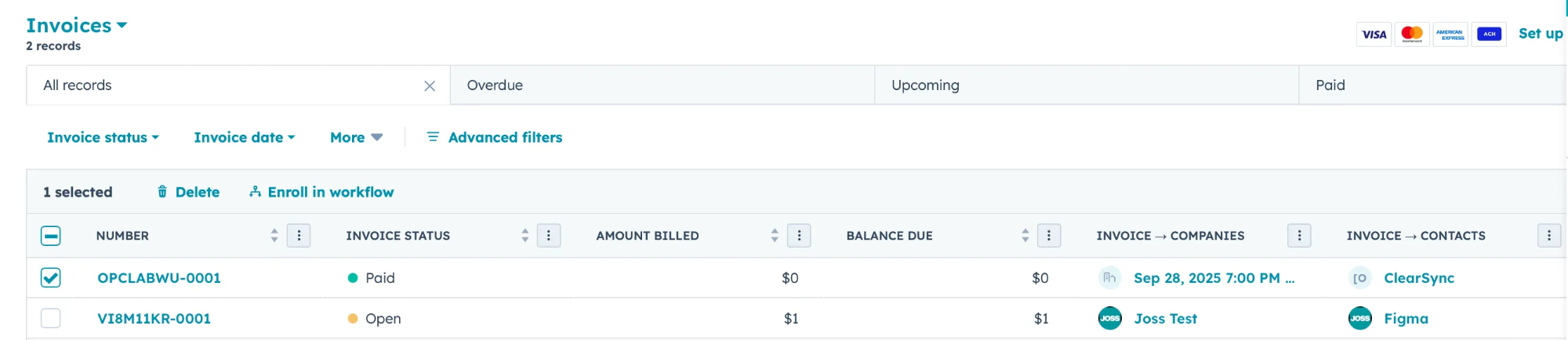
Step 1: Add the Invoice Sync in the HubSpot Data Sync for Stripe App
Inside the Stripe Data Sync App within HubSpot, go to “Sync Overview” > “Sync More Data”
Sync Stripe Invoices to HubSpot Invoices:
Step 2: Configure the Invoice Sync
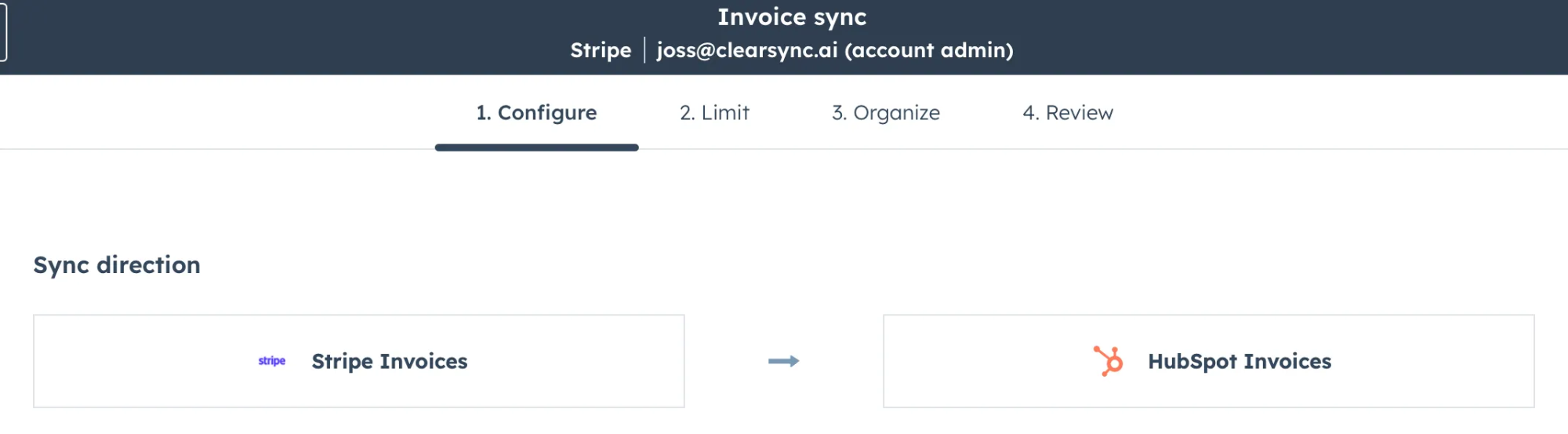
(A) Sync Direction: We recommend leaving this sync one-directional (from Stripe > HubSpot).
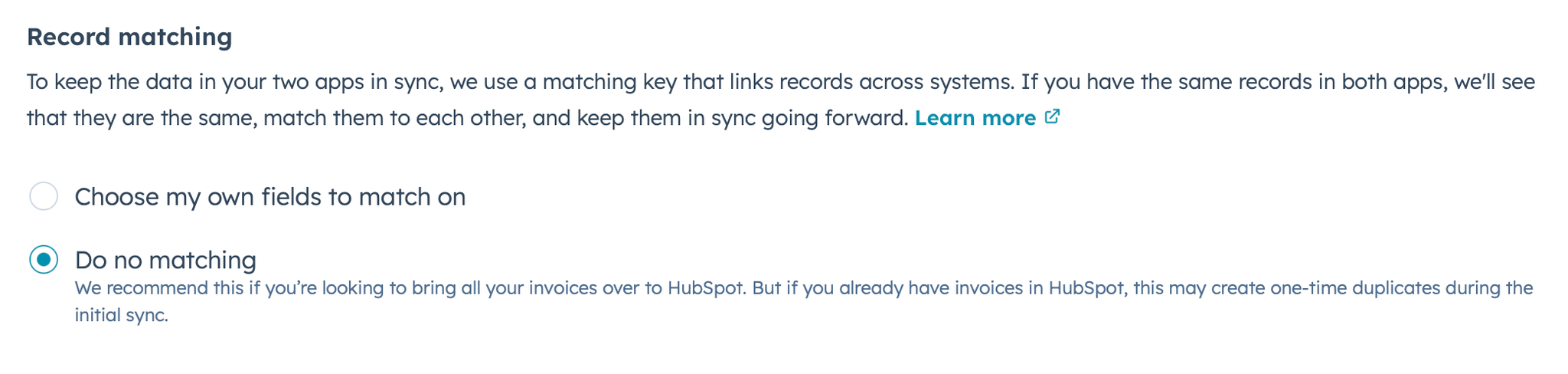
(B) Record Matching: The default “Do no matching” option will typically make sense, unless you have been creating Stripe Invoices and maintaining the Stripe Invoice ID in a custom field that you can use to match on:
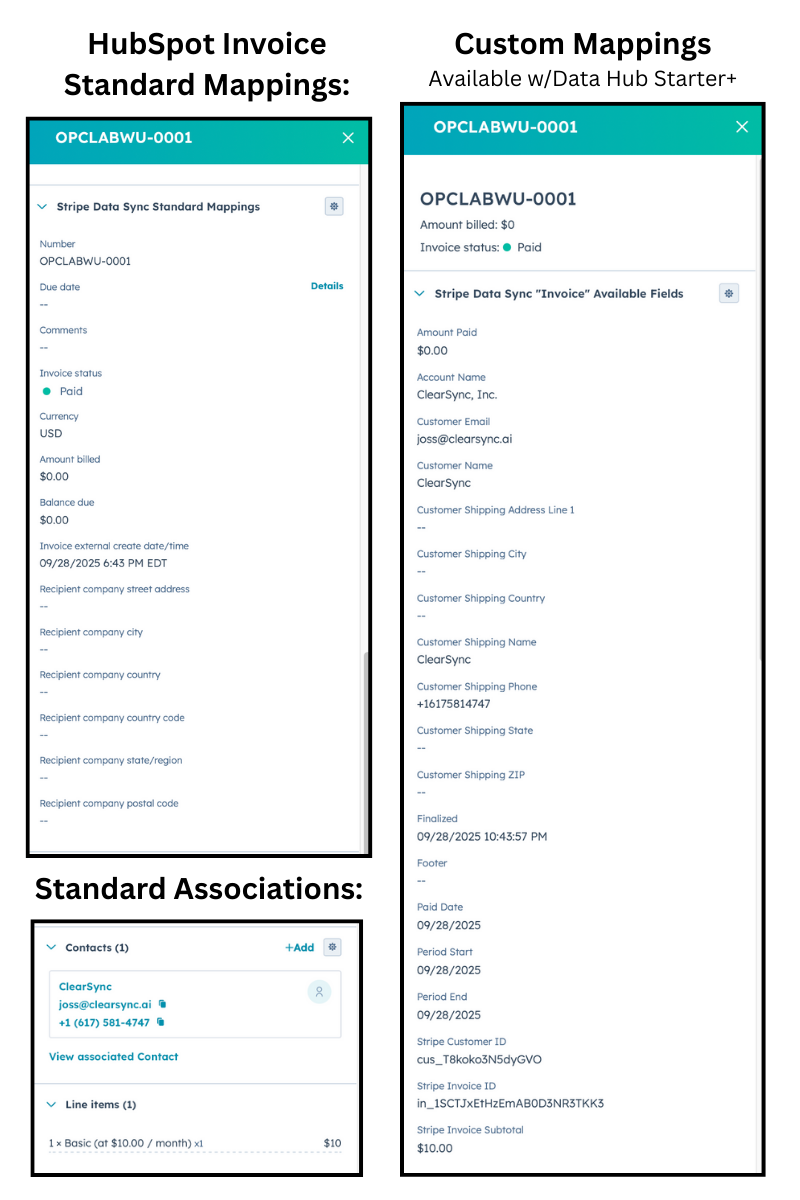
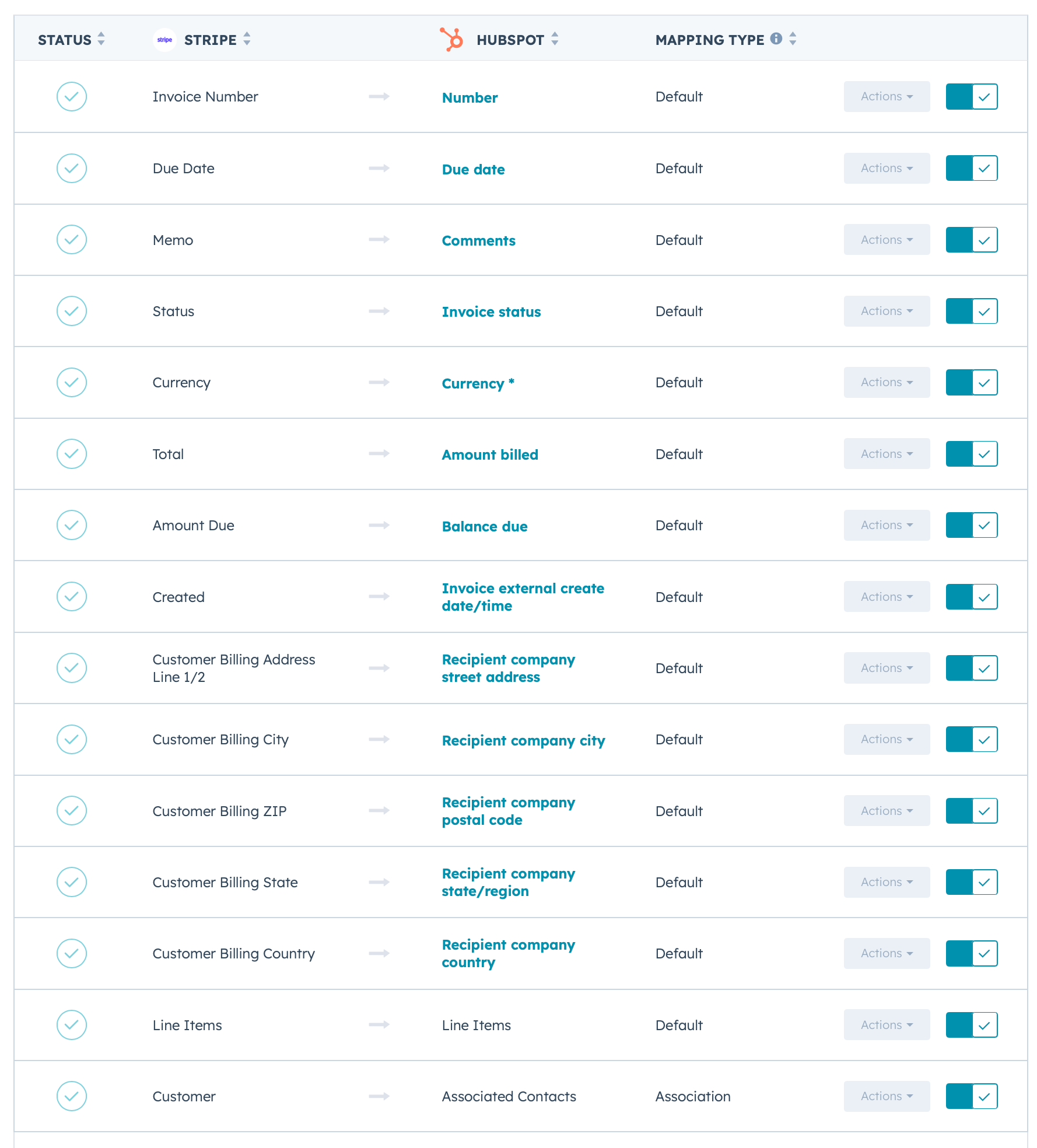
Then, set field mappings further down on the Configure screen, which includes these default mappings:
Here’s the complete list of available fields for mapping with notes:
Stripe Invoice Field
HubSpot Default Standard Field Mapping
HubSpot Custom Field Type to Create
Notes
Amount Due
Balance due
Amount Paid
Number field (currency)
Account Name
Text string
This is the Stripe account name for your business, which will likely be the same for all records, which means you might not want to create a custom mapping.
Instead you likely want to use “Customer Name” below.
Created
Invoice external create date/time
Currency
Currency
Customer
Associated Contacts
Customer Email
Text string
Customer Name
Text string
Customer Shipping Address Line 1/2
Text String
Customer Shipping City
Text String
Customer Shipping Country
Text String
Customer Shipping Name
Text String
Customer Shipping Phone
Text String
Customer Shipping ZIP
Text String
Customer Billing Address Line 1/2
Recipient company street address
Customer Billing City
Recipient company city
Customer Billing Country
Recipient company country
Customer BIlling State
Recipient company state/region
Customer Billing ZIP
Recipient company postal code
Due Date
Due date
This is the date that the invoice is due by.
Finalized
Text string
Footer
Text string
Invoice Number
Number
Line Items
Line Items
Memo
Comments
Paid Date
Date
Period End
Date
Note: In our testing, the “Period End” field did not work as expected and instead duplicated the value from Period Start.
Period Start
Date
Record ID
String
This is actually the Stripe Invoice ID (we suggest labeling that in HubSpot)
Status
Invoice status
Subtotal
Number field (currency)
Because there is a standard field on the HS invoice object of the same name, we suggest calling it “Stripe Invoice Subtotal”
This value is the amount invoiced before taking any discounts/coupon into account.
Total
Amount billed
🔗 [Customer] Fields
The integration allows you to also map any fields from the customer object onto the Invoice record (a Stripe invoice can only belong to one Stripe Customer).
We recommend at least creating a field “Stripe Customer ID” on the HS Invoice object and mapping it to linked Customer field called “Record ID”.
Example value: cus_T7yZCJicLFViLu
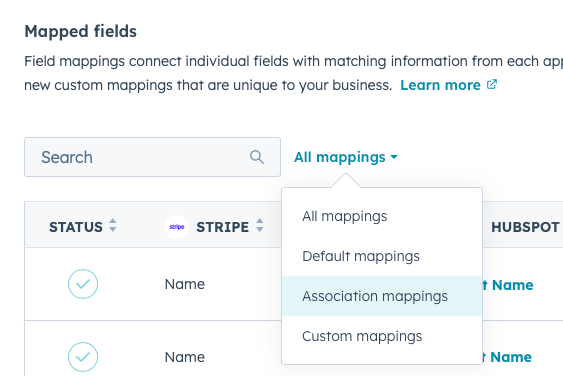
(C) Consider whether you might want to set any Association mappings, which you can define by selecting the “All mappings” dropdown > “Association mappings”:
Note that there are already default association mappings from Invoices to HubSpot Contacts & Line Items.
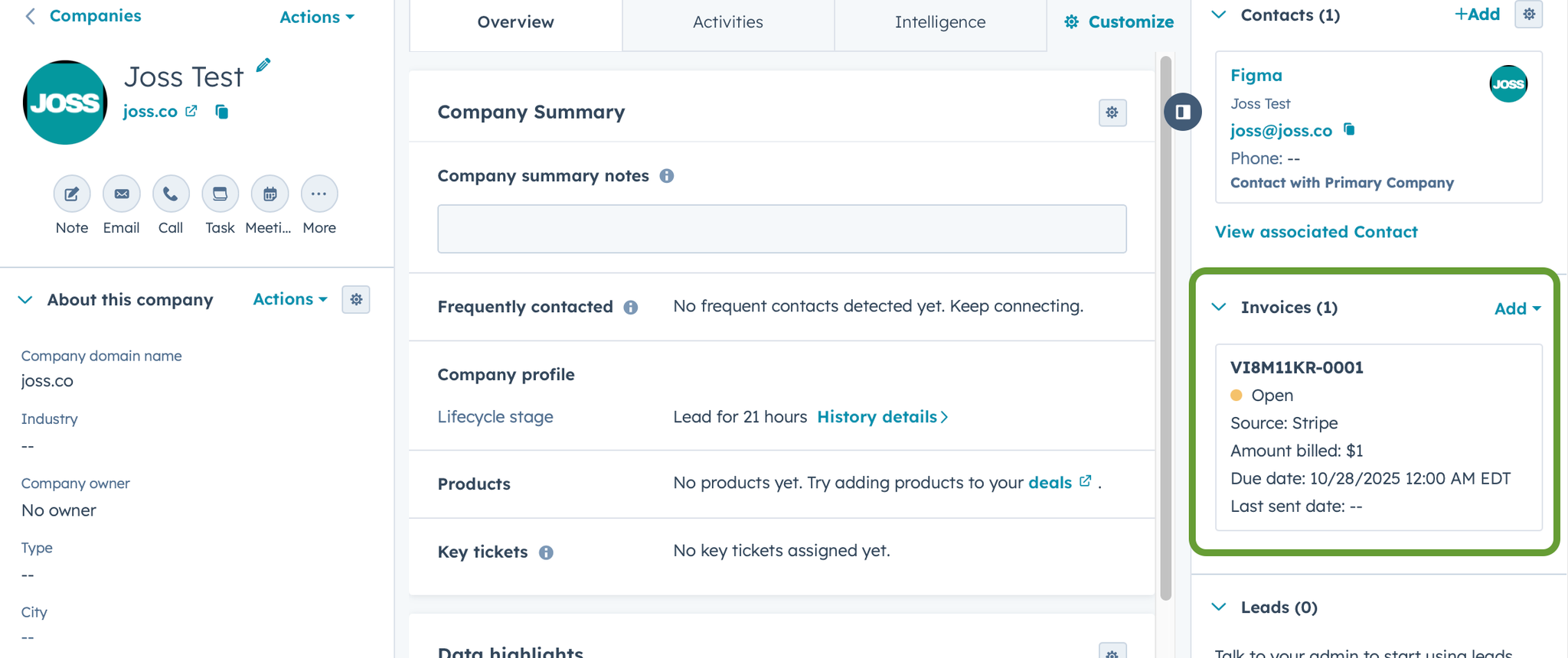
Additionally, the default mapping to Contacts drives mapping to the Contact’s Company:
Step 3: Set any Sync Limits
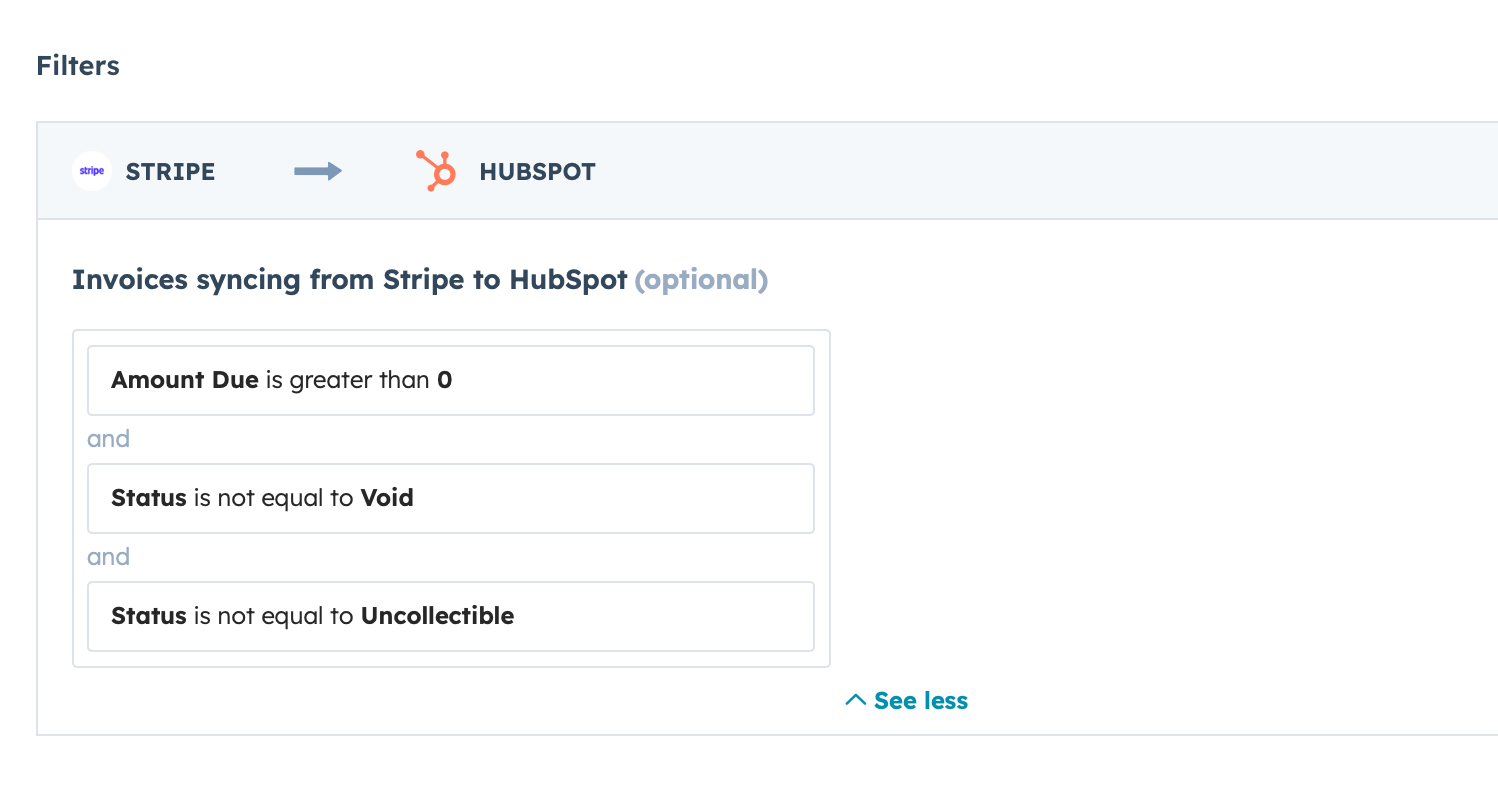
Decide whether you’d like to filter out any Invoices from coming into HubSpot based on either Stripe Invoice or Stripe Customer fields matching specific values.
For example, with this Limit configuration, we are only syncing Invoices where the Amount Due is > $0 and the Status is not Void or Uncollectible:
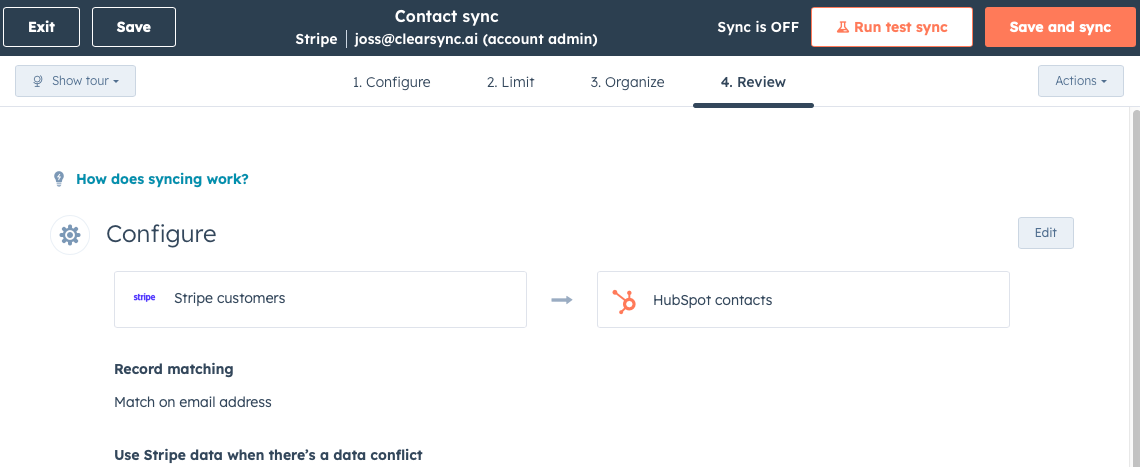
Step 4: Click “Review” > “Save and sync” (optionally, run a test sync first):