
Overview
ClearSync requires read-only access to specific Stripe data to synchronize your subscription and billing information with HubSpot.
- ClearSync never modifies, creates, or deletes any data in your Stripe account.
Options for Connecting Stripe
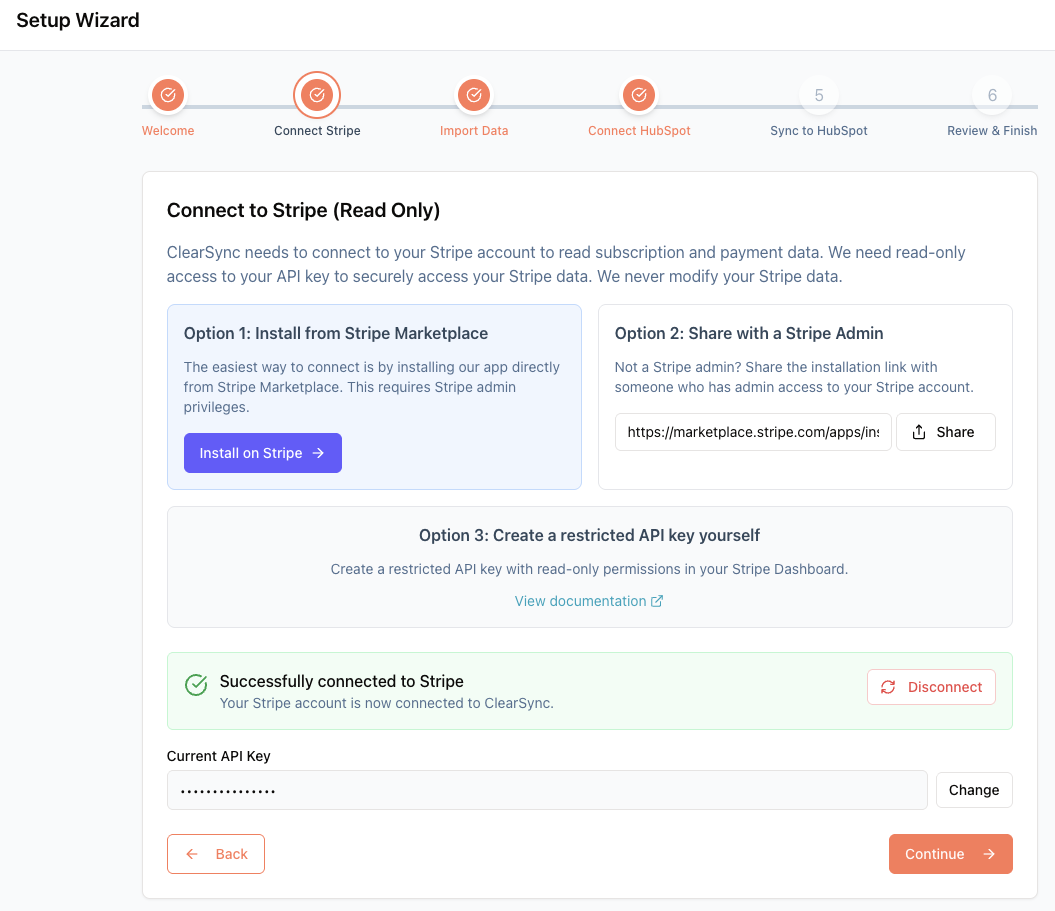
Option 1: Install from Stripe Marketplace (Easiest)
By clicking Install on Stripe, you will be prompted to log in to Stripe and install ClearSync, which will then automatically generate a restricted read-only key with the minimum required Stripe permissions as described below.
- You can then copy/paste that Restricted Key into ClearSync.
Option 2: Share with a Stripe Admin
If you aren’t the Stripe admin, you can share ClearSync’s install link with an admin so they can install ClearSync in Stripe and automatically generate a Restricted Key with the minimum required permissions.
- Either you or they can then copy/paste that Restricted Key into ClearSync.
Option 3: Manually create a Restricted API Key in Stripe and Configure Permissions
You can use a Stripe Secret key to connect to ClearSync. Or, if you’d prefer to create and use a Restricted Key to give ClearSync the minimum possible permissions:
- Log into your Stripe Dashboard
- Go to Developers → API Keys
- Click Create restricted key
- Click “Providing this key to another website”
- Give it a name like "ClearSync Integration"
- Enter https://www.clearsync.ai for the URL
- Check and enable “Customize permissions for this key”
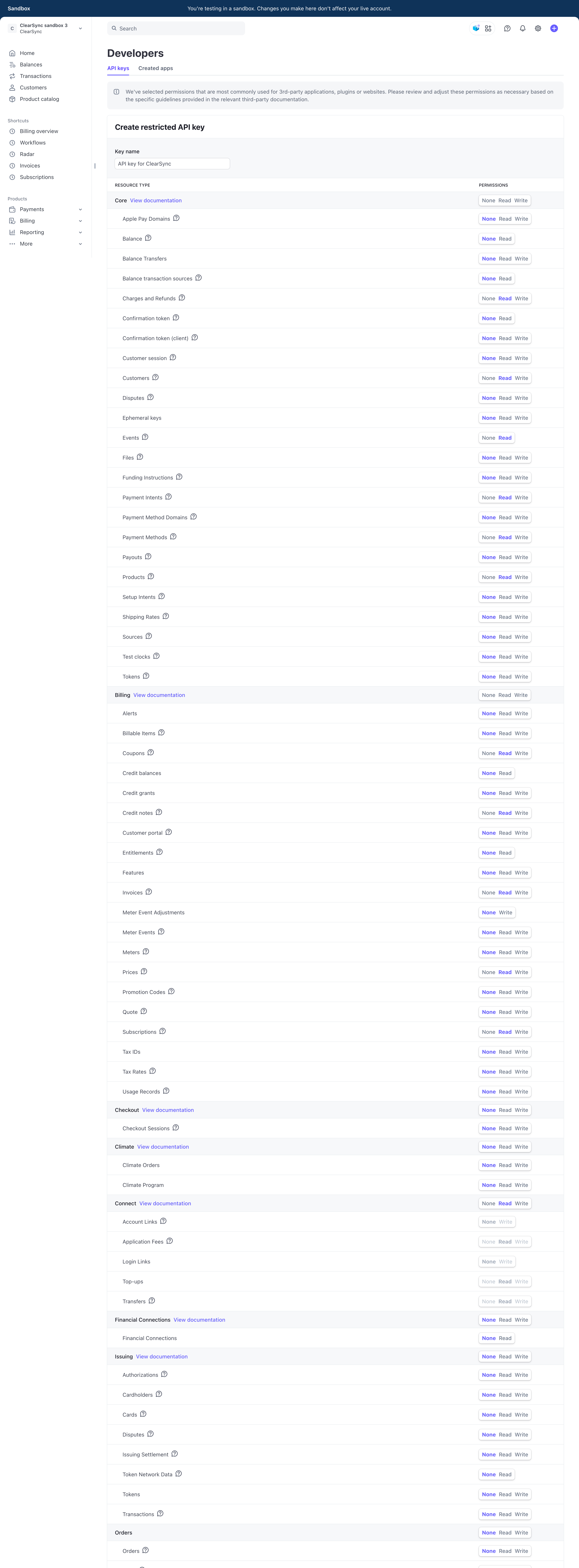
In the “Create restricted API key”, set these exact resource permissions:
plain textCore -- click "None" on the Core Section, then add:
✅ Charges and Refunds - Read
✅ Customers - Read
✅ Events - Read
✅ Payment Intents - Read
✅ Payment Methods - Read
✅ Products - Read

Billing -- click "None" on the Billing Section, then add:
✅ Coupons - Read
✅ Credit Notes - Read
✅ Invoices - Read
✅ Prices - Read
✅ Subscriptions - Read

✅ Connect -- (the entire category) - Read

✅ Webhook: Write
(This is so ClearSync can create an outging webhook in your Stripe
to read event data. ClearSync will never write webhook data to
your Stripe account.)

❌ All other resources: None

Note: If you have Connect as a second column of permissions options,
set all of those to None as well, leaving Connect in the left
column set to Read.
- Once you have the Stripe key, you or a teammate can connect it to ClearSync (Step 5 here) and begin your Stripe data import!
Your Stripe Restricted API key page should look like this when all permissions are set correctly:
How ClearSync Uses Stripe API Key Read Access:
Troubleshooting Stripe Access
Common Permission Issues
Error: "Insufficient permissions to access customers"
- Ensure Customers - Read is enabled
Error: "Cannot retrieve subscription data"
- Ensure Subscriptions - Read is enabled
Error: "Historical import failed"
- Ensure Invoices - Read is enabled
Error: "Product names not displaying"
- Ensure Products - Read and Prices - Read are enabled
Error: "MRR calculations incorrect with discounts"
- Ensure Coupons - Read is enabled
If you encounter any issues with API key setup or permissions:
- Verify all required permissions are enabled
- Ensure you're using a secret or restricted key
- Check that the key is for the correct Stripe account (live vs test)
- Contact ClearSync support with the specific error message (support@clearsync.ai)
- Still have questions? Contact our support team for assistance with setting up Stripe API keys and permissions by emailing support@clearsync.ai.