
In this guide, we’ll go over the initial setup for ClearSync, the Stripe-to-HubSpot integration designed for recurring revenue teams.
Step 1: Sign up for ClearSync
- Review the System Requirements to make sure ClearSync will work for you.
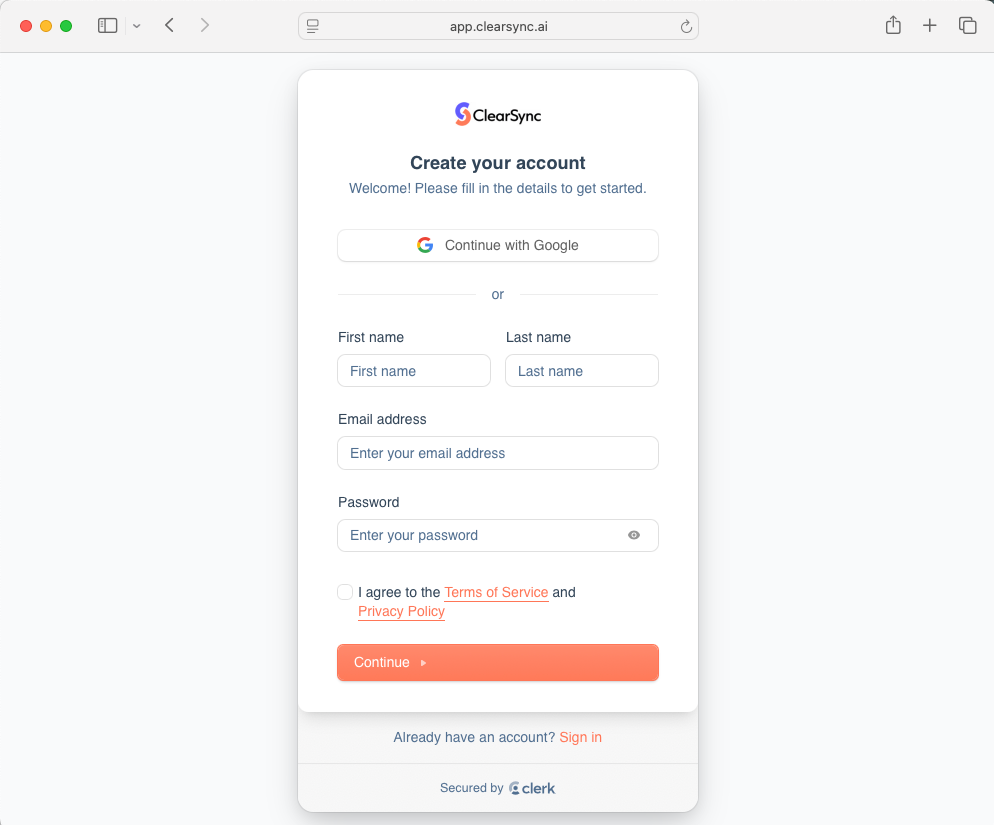
- Sign up for a ClearSync account by visiting app.clearsync.ai/sign-up
Continue with Google or create an account with your business email:
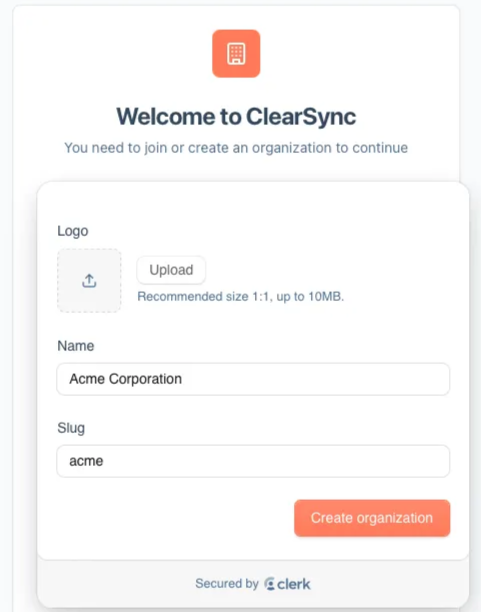
Create a ClearSync Organization for you and your team to join:
Step 2: Connect ClearSync to Stripe
- The Setup Wizard will launch, prompting you to connect to Stripe to ClearSync.
- Recommended: Click Install on Stripe to automatically generate a Restricted Key with the minimum possible Read Only permissions for ClearSync
- Then, paste that key in at the bottom of the screen where it says Stripe API Key:

Step 3: Import your Stripe Data into ClearSync
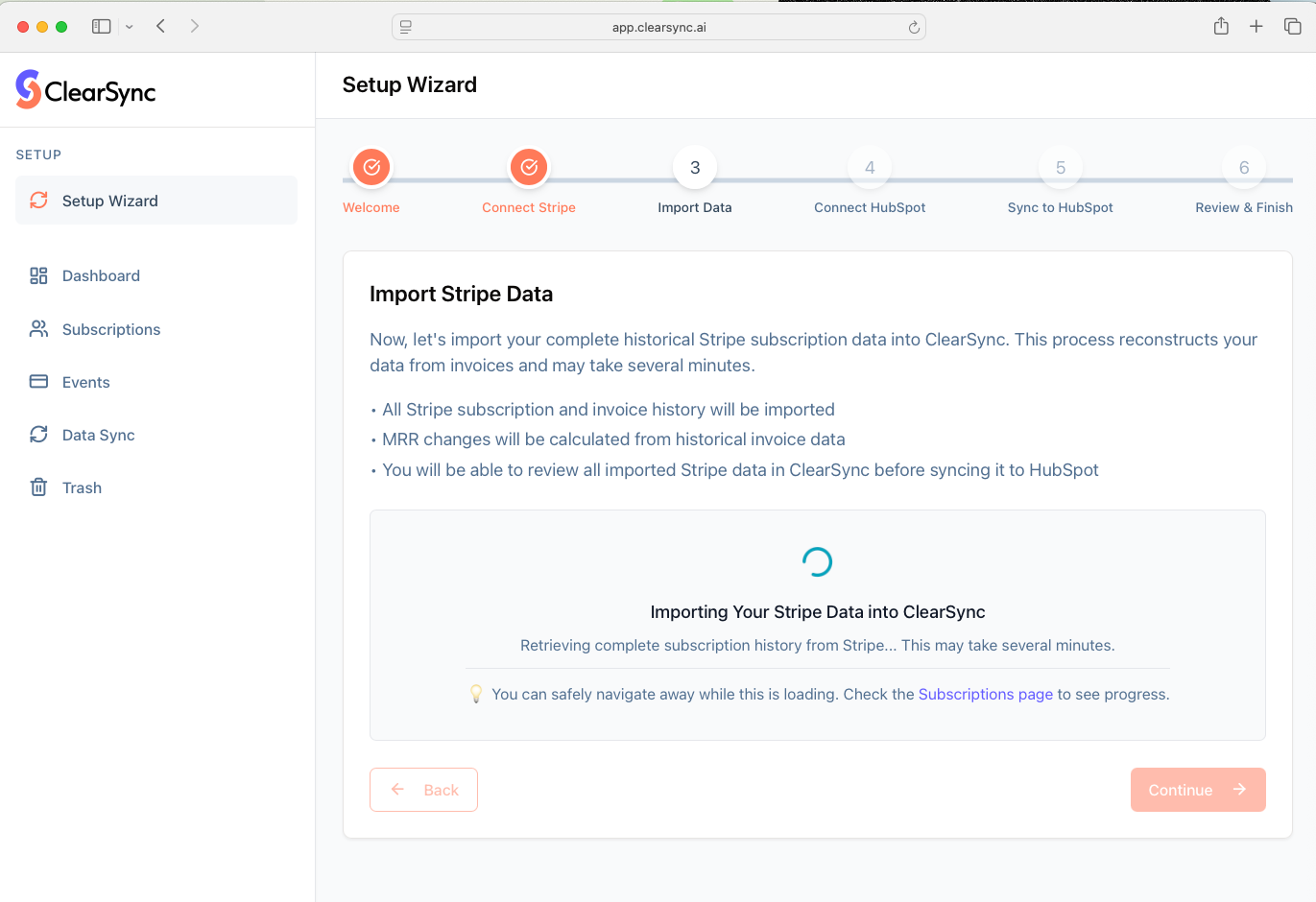
- Click the Import button to bring your Stripe data into ClearSync:
- Depending on the number of Stripe records, it may take five minutes to an hour to sync.
- You can navigate away from the page while the import completes.
Step 4: Validate your Stripe Data in ClearSync
Validate your data within ClearSync:
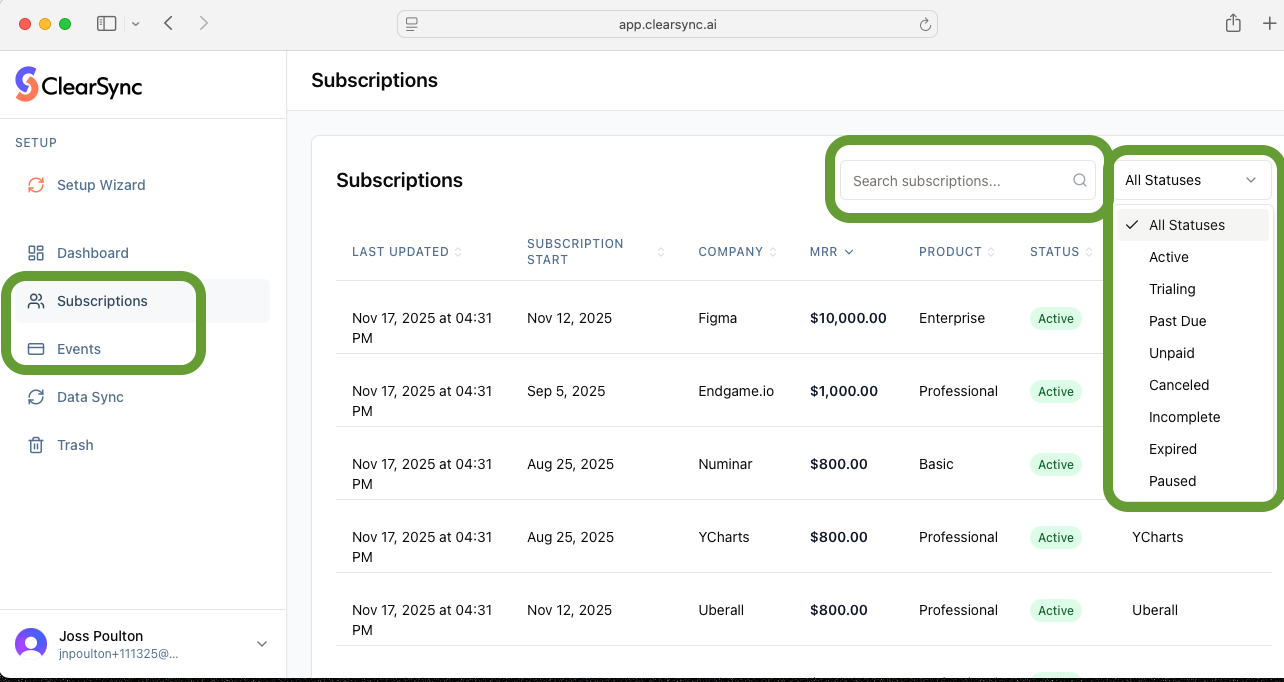
Click into Subscriptions and Events in ClearSync’s navigation to review your Stripe data before sending it to HubSpot. We recommend clicking into some of your larger and more complex Subscriptions to review their history.
- You can search Subscriptions by Customer, view by status, or look at Events:
- If you have questions about your data, please reach out to us at support@clearsync.ai
Step 5: Sync your Stripe Data to HubSpot
- Sync your Stripe Data to HubSpot:
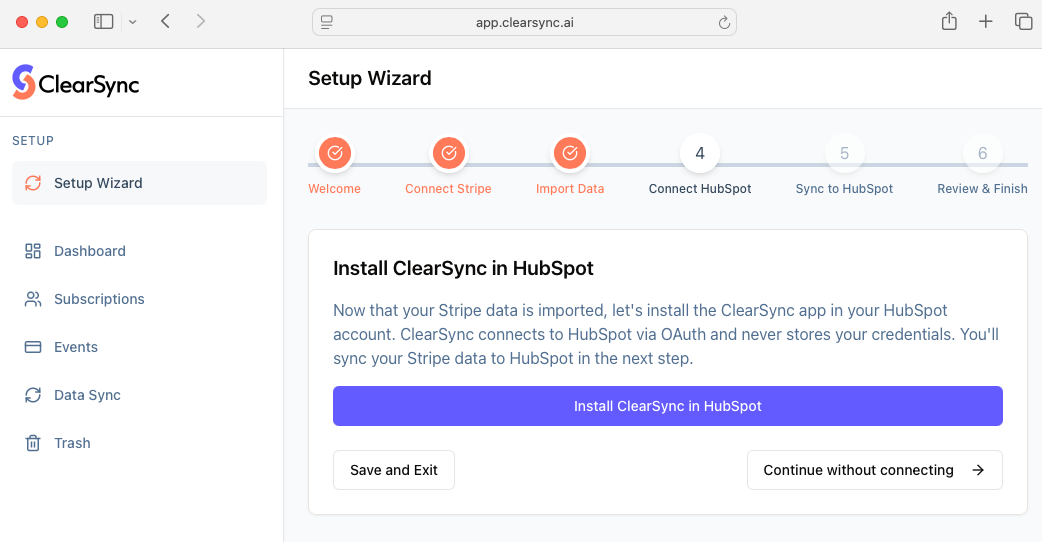
- Click “Install ClearSync in HubSpot”, then sign into the HubSpot Account you’d like to connect:
- Decide on your HubSpot Sync Settings:

More on HubSpot Sync Setting Options:
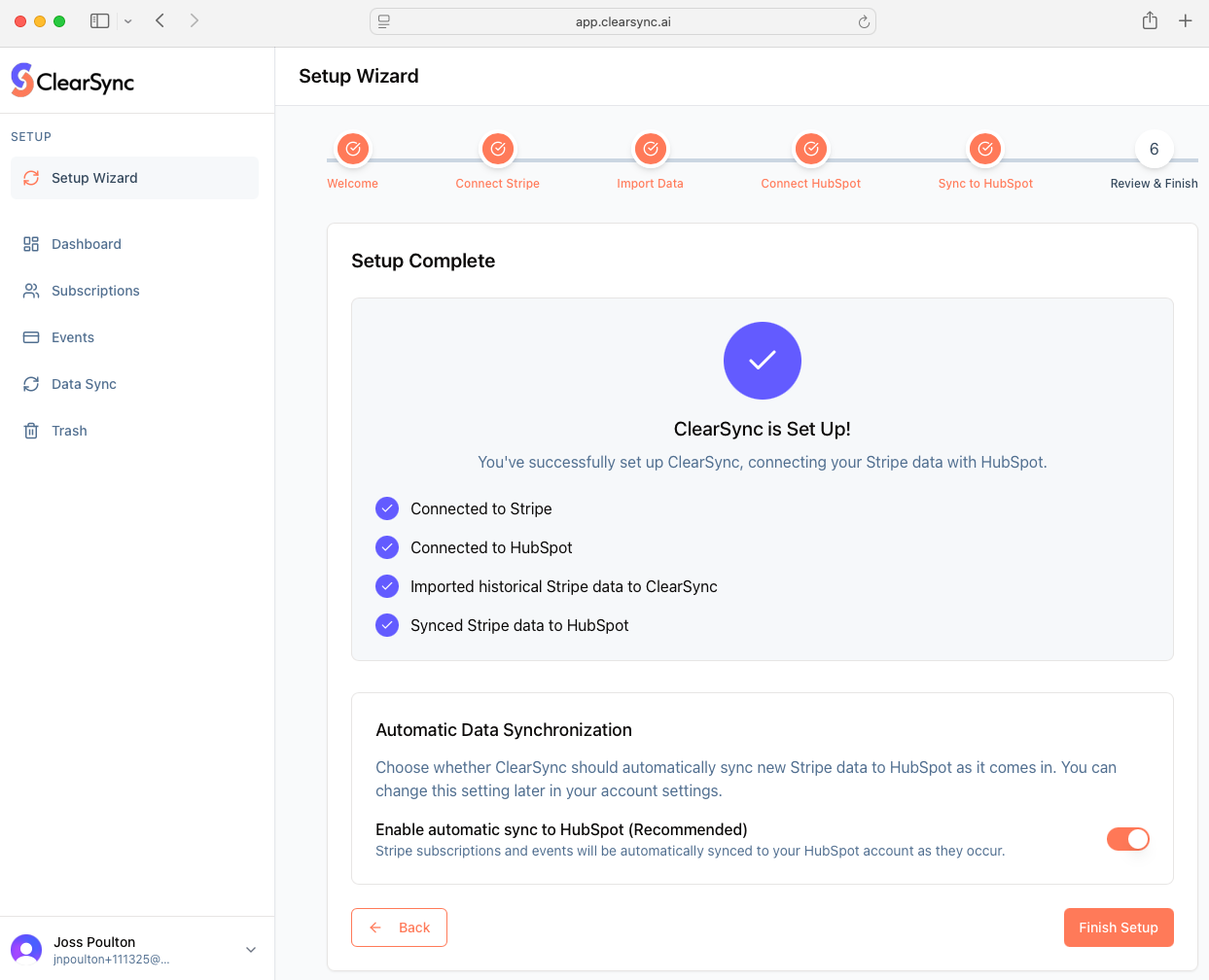
Step 6: 🥳🏁 Enable automatic sync to HubSpot [Recommended]:
Now that we’ve finished importing historical Stripe data into HubSpot, we’d suggest enabling the automatic sync to HubSpot setting so that your HubSpot stays up to date as things change in Stripe. Then:
- Subscription changes in Stripe are reflected in ClearSync immediately.
- ClearSync automatically pushes any changes to HubSpot every minute (if enabled).
Next: Setting up ClearSync in HubSpot