Step 1: Add/Edit ClearSync Cards on HubSpot Company Layout(s):
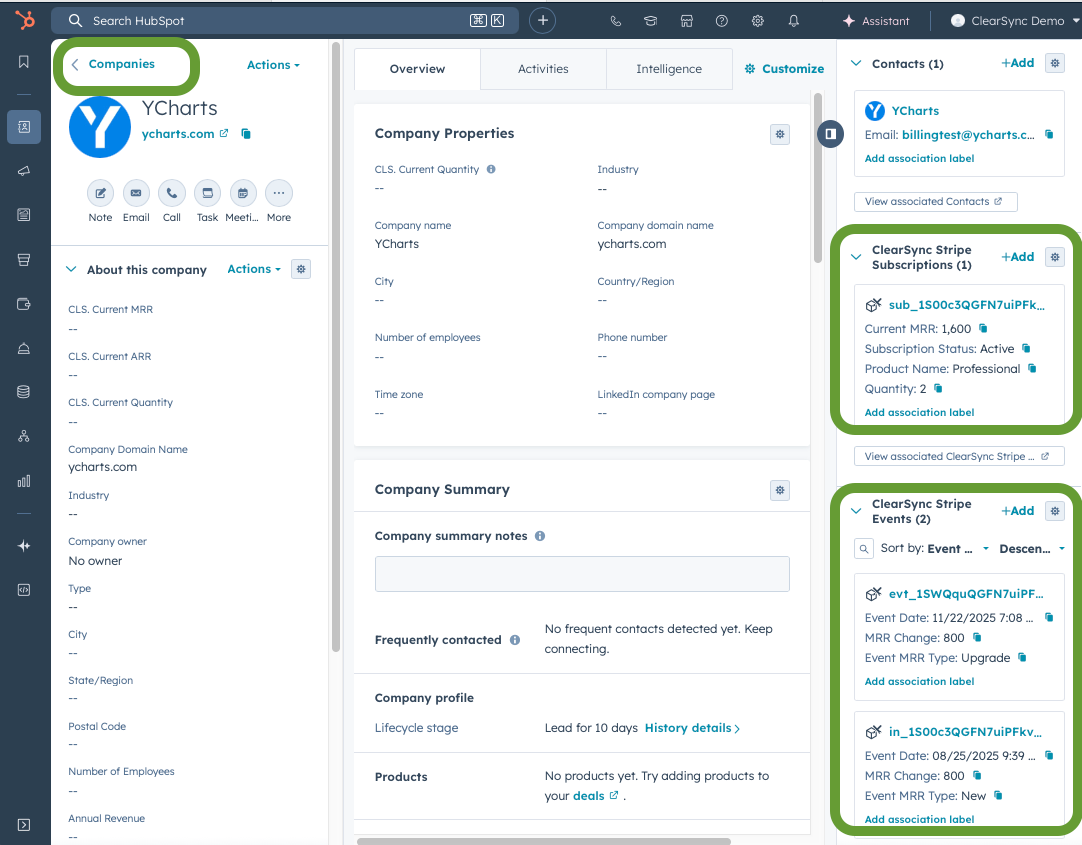
(1) Edit your Company Page Layouts by navigating to any Company record, then click “Customize” near the top of the screen, and click into each of your active Layout(s).
Then either edit the existing ClearSync Stripe Subscription app card in the right column, or:
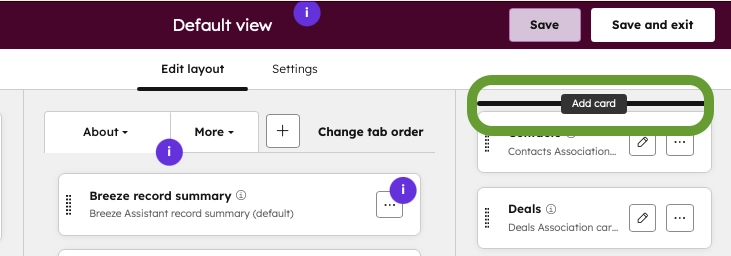
Click “Add Card” when you hover between two existing cards. Then click “Card Library” and add ClearSync Stripe Subscriptions
(2) Edit the ClearSync Stripe Subscription App Card, and:
(A) Add the fields Product Name and Quantity to the Card
(B) Sort the card by Current MRR, Descending
(3) Add or edit the ClearSync Stripe Events card on your HubSpot Company Layouts as well. We suggest then editing the App Card and:
(A) Adding Event Date
(B) Sorting the card by Event Date, Descending
Step 2: Add/Edit ClearSync Cards to Contact & Deal Layout(s)
If you’d like to show associated ClearSync data on your Contact and Deal records as well, repeat the steps in Step 1 on your Contact and Deal page layouts.
Tip: HubSpot will remember your customizations, so you simply need to add the Cards to your Contact & Deal Layouts
Step 3: Configure the ClearSync Stripe Subscription Layout
Go to CRM > Companies, then click into the object selector in the top-left that says “Companies” and navigate to ClearSync Stripe Subscriptions.
Then click into any record and click “Customize”
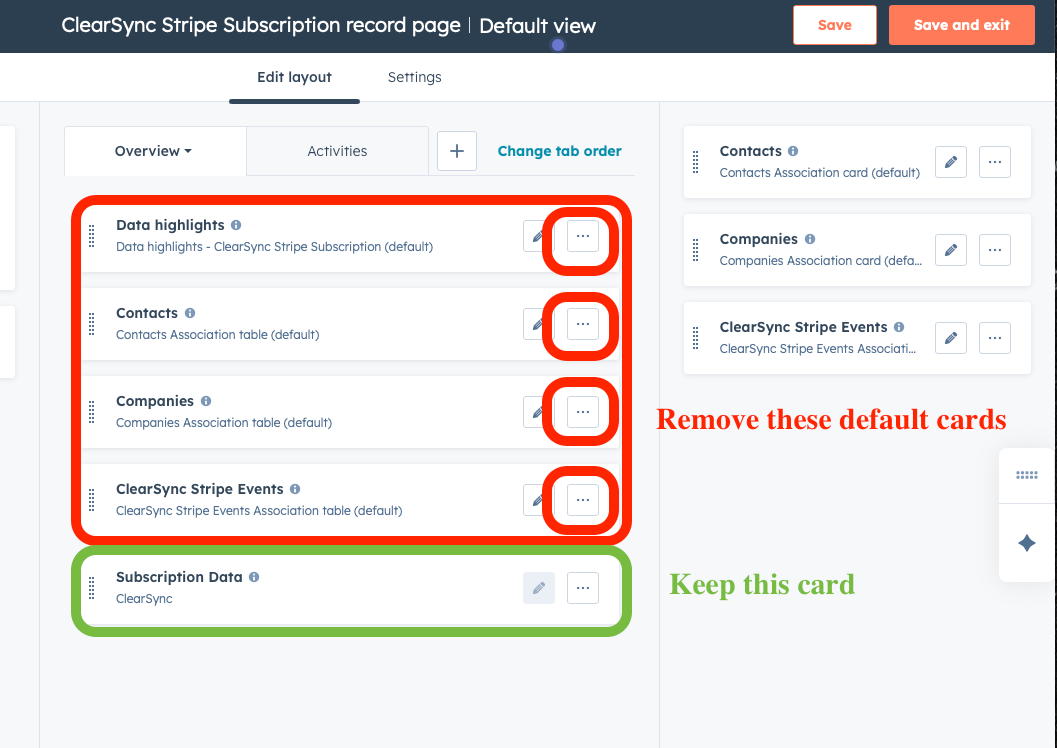
Remove the Data highlights, Contacts, Companies, and ClearSync Stripe Events cards:
Step 4: Configure the ClearSync Stripe Event Layout:
Go to CRM > Companies, then click into the object selector in the top-left that says “Companies” and navigate to ClearSync Stripe Events.
Then click into any record and click “Customize”:
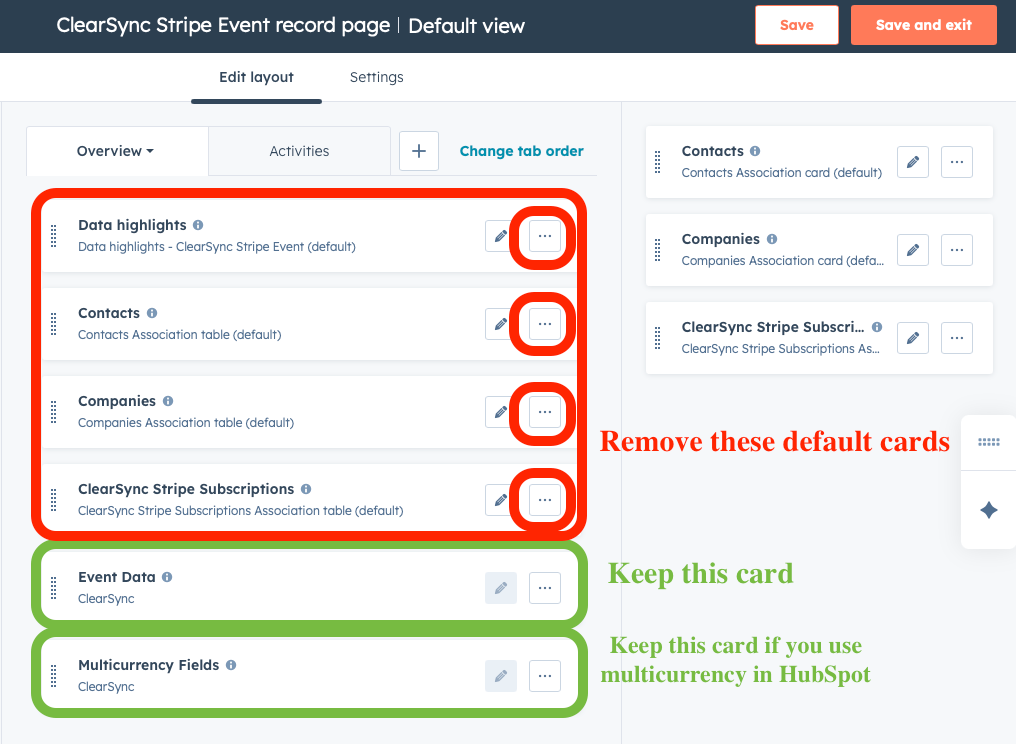
Remove the Data Highlights, Contacts, Companies, and ClearSync Stripe Subscriptions cards:
🏁 ClearSyncdata is now visible on your Company, Contact, Subscription, & Event records!