To create a User in HubSpot with the permissions that the ClearSync team will need to help you with reporting, dashboards, and configuration:
Step 1: Go to Settings (the gear icon at the top of HubSpot) > Users & Teams
Step 2: Click Create Users > add support@clearsync.ai
- Only full-time ClearSync employees will have access
- Credentials for this user are stored securely in 1Password
Step 3: Select Start with a template and then choose the Marketing Manager template (don’t click Next yet!)
Step 4: Scroll down and click Choose permissions:
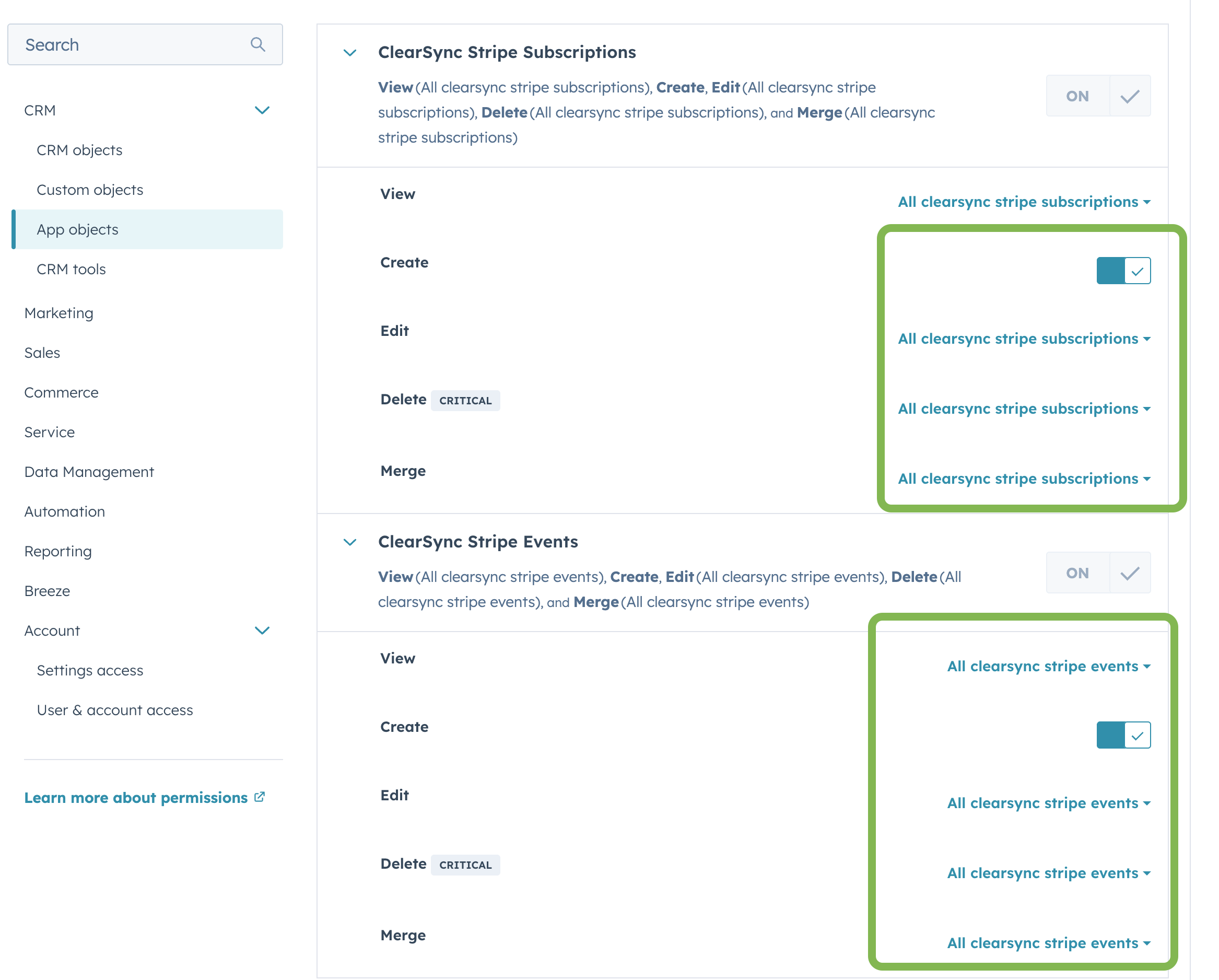
- Click App Objects on the left menu, and then enable “Create” for both ClearSync objects and change the Create/Edit/Delete/Merge options to All:
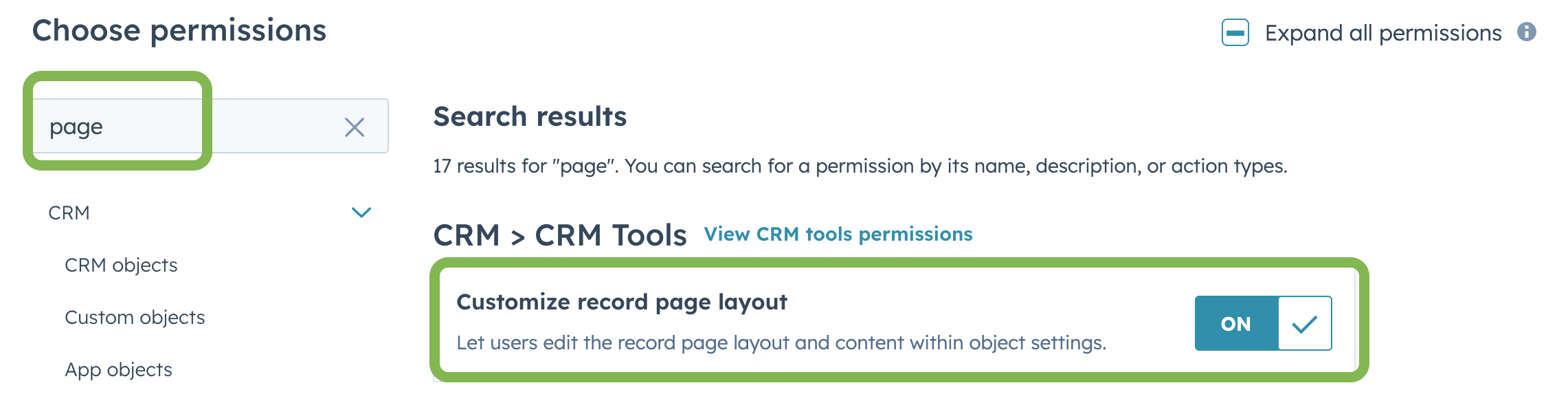
Step 5: Search for “Page Layout” and then enable Customize record page layout:
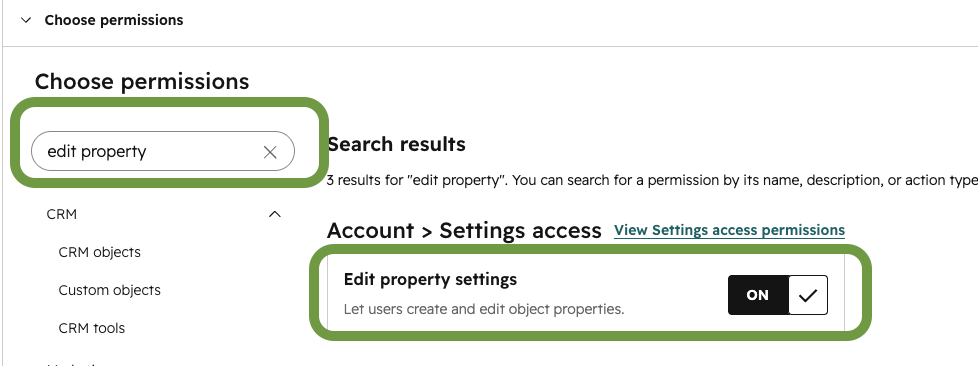
Step 6: Search for “Edit Property” and then enable Edit property settings:
🏁 Click Next and then Send, which will send the user invite to the ClearSync team. You can then remove access as soon as configuration is complete.
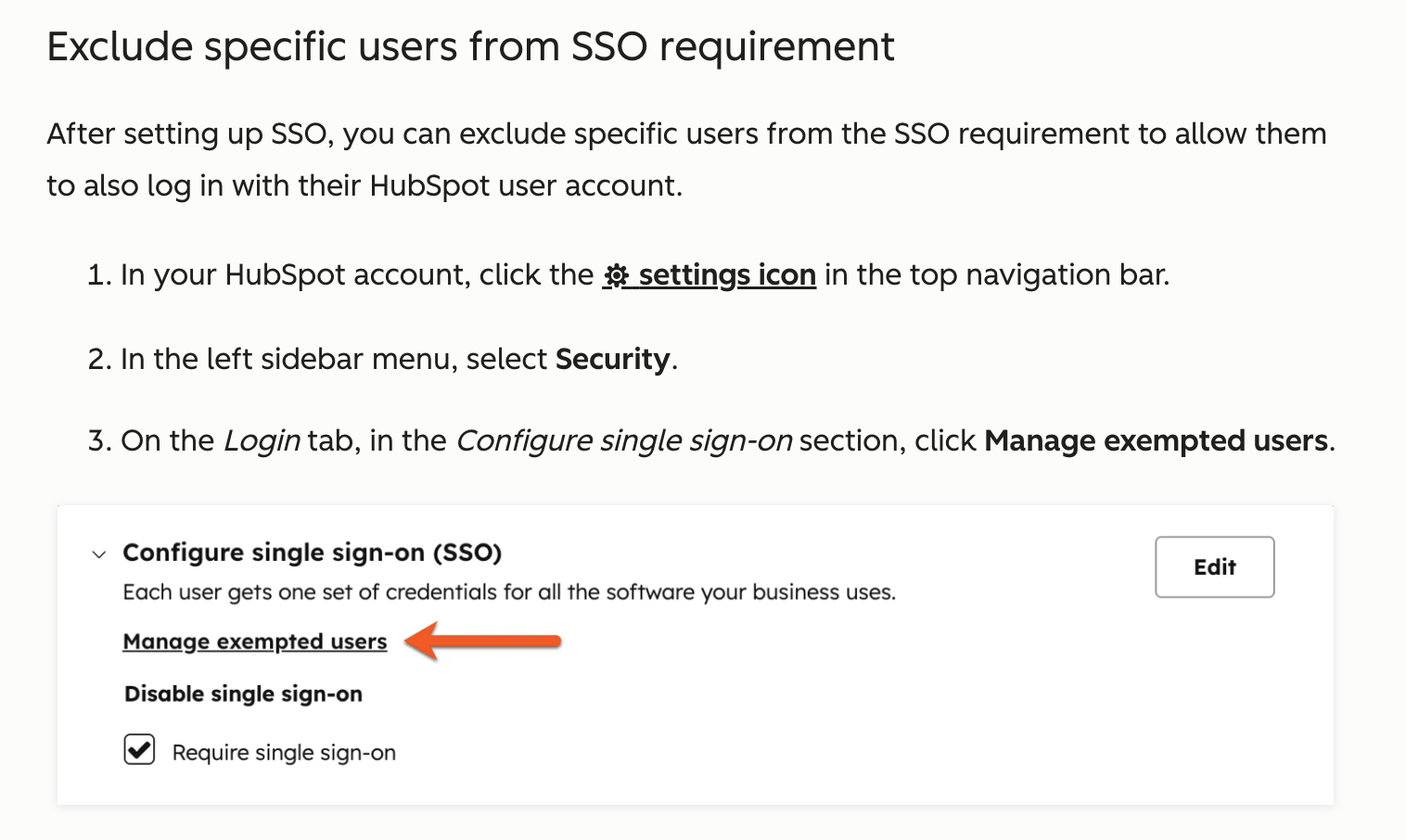
Note: If you have Single Sign-on configured, you might need to exempt ClearSync’s temporary user from that policy: