
ClearSync keeps HubSpot up to date with your Stripe data automatically, so most of the time you don't need to do anything. If something in HubSpot looks out of date, is missing, or is associated with the wrong Contact or Company, the Data Sync page in ClearSync has three buttons you can use to sync data to HubSpot manually.
How ClearSync Syncs Your Data
ClearSync moves your data in two steps:
- Stripe to ClearSync. ClearSync picks up changes in Stripe automatically, usually within seconds. New subscriptions, upgrades, downgrades, cancellations, payments, and customer email changes are saved in ClearSync, and ClearSync recalculates MRR. This step is always on, and there's no button for it.
- ClearSync to HubSpot. ClearSync then sends anything that changed to HubSpot. With Automatic HubSpot Sync turned on, this runs every 5 minutes, so a change in Stripe typically shows up in HubSpot within 5 minutes. You can also send changes right away with the manual sync buttons.
Automatic HubSpot Sync
You'll find the Automatic HubSpot Sync toggle at the bottom of HubSpot Sync Settings on the Data Sync page.
- On: ClearSync sends changes to HubSpot every 5 minutes. It's turned on for you during setup and is recommended to always stay on.
- Off: ClearSync still picks up every change from Stripe, but doesn’t push it to HubSpot unless you sync it manually. No data is lost. The next time you click Sync Pending Changes to HubSpot, all new records sync to HubSpot.

Manual Sync Buttons
The manual sync buttons are in the Sync Data to HubSpot Manually section of the Data Sync page.
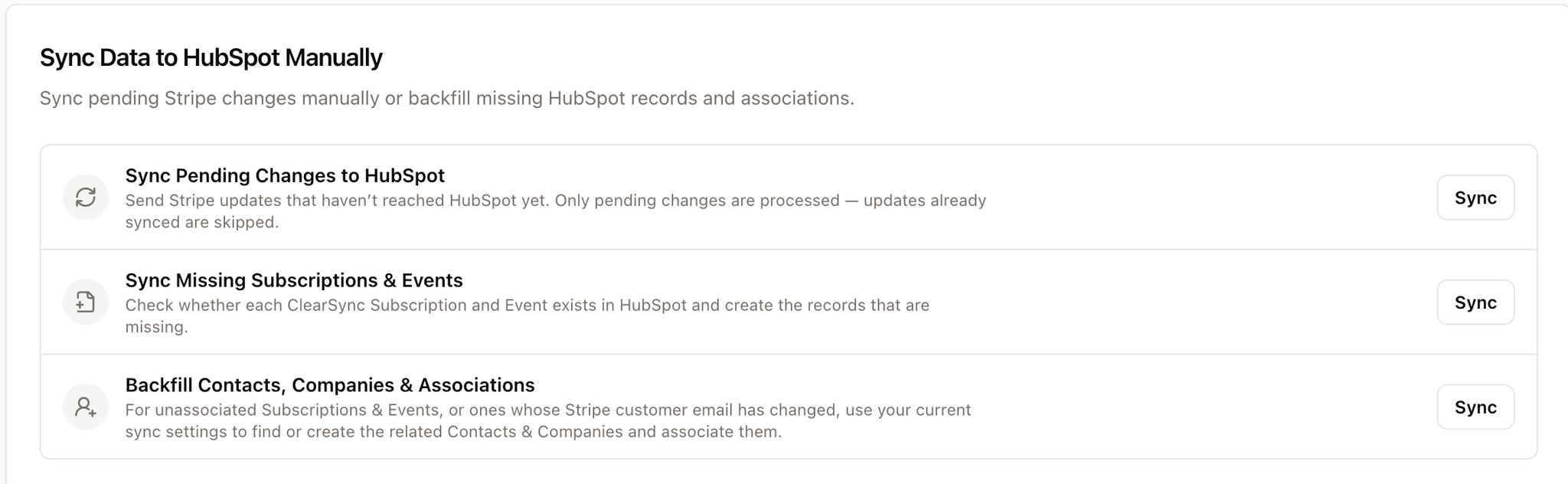
Button | Use it when | What it changes in HubSpot |
Sync Pending Changes to HubSpot | A change in Stripe hasn't shown up in HubSpot yet | Creates and updates records with any changes that haven't synced yet |
Sync Missing Subscriptions & Events | Records were deleted in HubSpot, or are in ClearSync but not in HubSpot | Creates only the missing records. Existing records aren't changed. |
Backfill Contacts, Companies & Associations | Records in HubSpot aren't associated with the right Contact or Company | Adds and updates associations, and creates Contacts and Companies if your settings allow it |
1. Sync Pending Changes to HubSpot
Sends any changes from Stripe that haven't reached HubSpot yet. It's the same sync that runs automatically every 5 minutes, just run right now.
What's included:
- New and updated ClearSync Stripe Subscriptions and ClearSync Stripe Events
- HubSpot Payment records, if the Sync Stripe Payment data to HubSpot Payments object toggle is turned on. See Syncing Stripe Payments to HubSpot Payments.
- Customer email changes from Stripe, which move the record's association to the Contact for the new email
Use it when: Automatic HubSpot Sync is off, or you just made a change in Stripe and don't want to wait for the next automatic sync.
2. Sync Missing Subscriptions & Events
Checks HubSpot for every ClearSync Stripe Subscription and ClearSync Stripe Event record, and creates the ones that are missing. Newly created records are associated with Contacts and Companies using your current HubSpot Sync Settings toggles, and re-created Subscriptions are linked back to their Events.
Records that already exist in HubSpot aren't updated or changed. Payment records aren't included.
Use it when: someone deleted ClearSync records in HubSpot, or you can see a subscription in ClearSync but can't find it in HubSpot.
3. Backfill Contacts, Companies & Associations
Checks the ClearSync Stripe Subscriptions, ClearSync Stripe Events, and Payment records that already exist in HubSpot, and updates their associations to match your current HubSpot Sync Settings. It will:
- Associate records that have no Contact or Company
- Create Contacts and Companies when they don't exist yet, if Auto-create contacts or Auto-create companies for new unique domains is turned on
- Associate Contacts with their matched Company
- Move associations when a Stripe customer's email has changed. An old association is only removed if it matches the customer's previous Stripe email.
Note: Backfill never deletes Contacts or Companies, only associations. Associations you added manually in HubSpot are left unchanged. Backfill uses the customer emails already saved in ClearSync and doesn't check Stripe again.
Use it when: you changed your matching settings (for example, turned on Match to existing companies via domain) and want them applied to existing records, records in HubSpot have no Contact or Company, or a customer changed their billing email and the old association is still there.
Checking Your Sync Results
- Records Synced to HubSpot on the Data Sync page shows how many Subscriptions and Events are in HubSpot, the number of total sync errors, and when the last sync ran.
- The Sync History tab shows each sync and any errors.
- The Settings History tab shows who clicked each manual sync button, and when.
Learn More
Still stuck? Reach out to us at support@clearsync.ai and we'll help you out.