
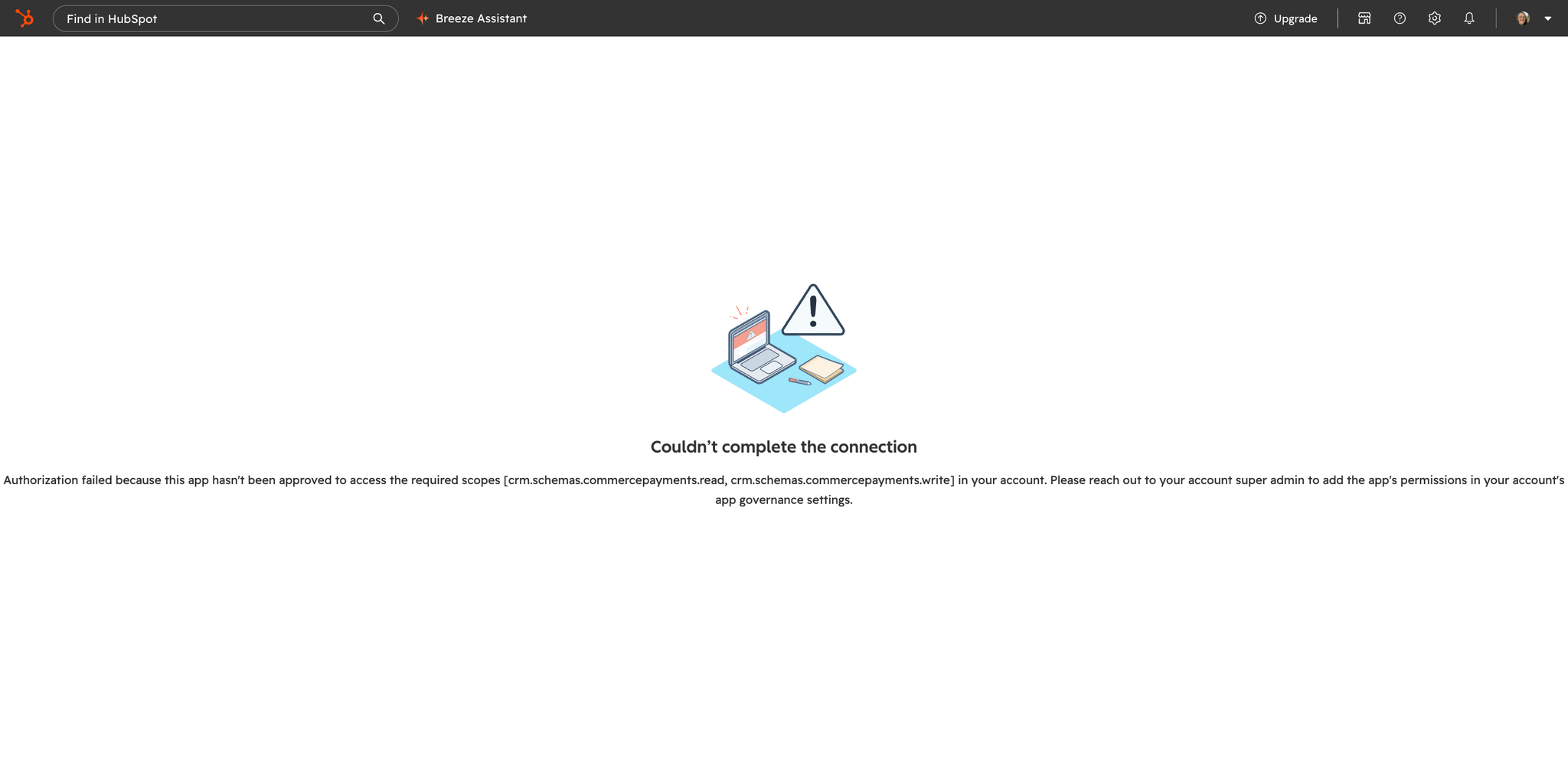
If HubSpot blocks your ClearSync HubSpot app update with an error saying the app "hasn't been approved to access the required scopes," that's a HubSpot setting, not a ClearSync error. A Super Admin has to first turn on permissions in HubSpot before the update can complete.
How to Fix It
- As a Super Admin in HubSpot, go to Marketplace > Connected apps > Approved apps.
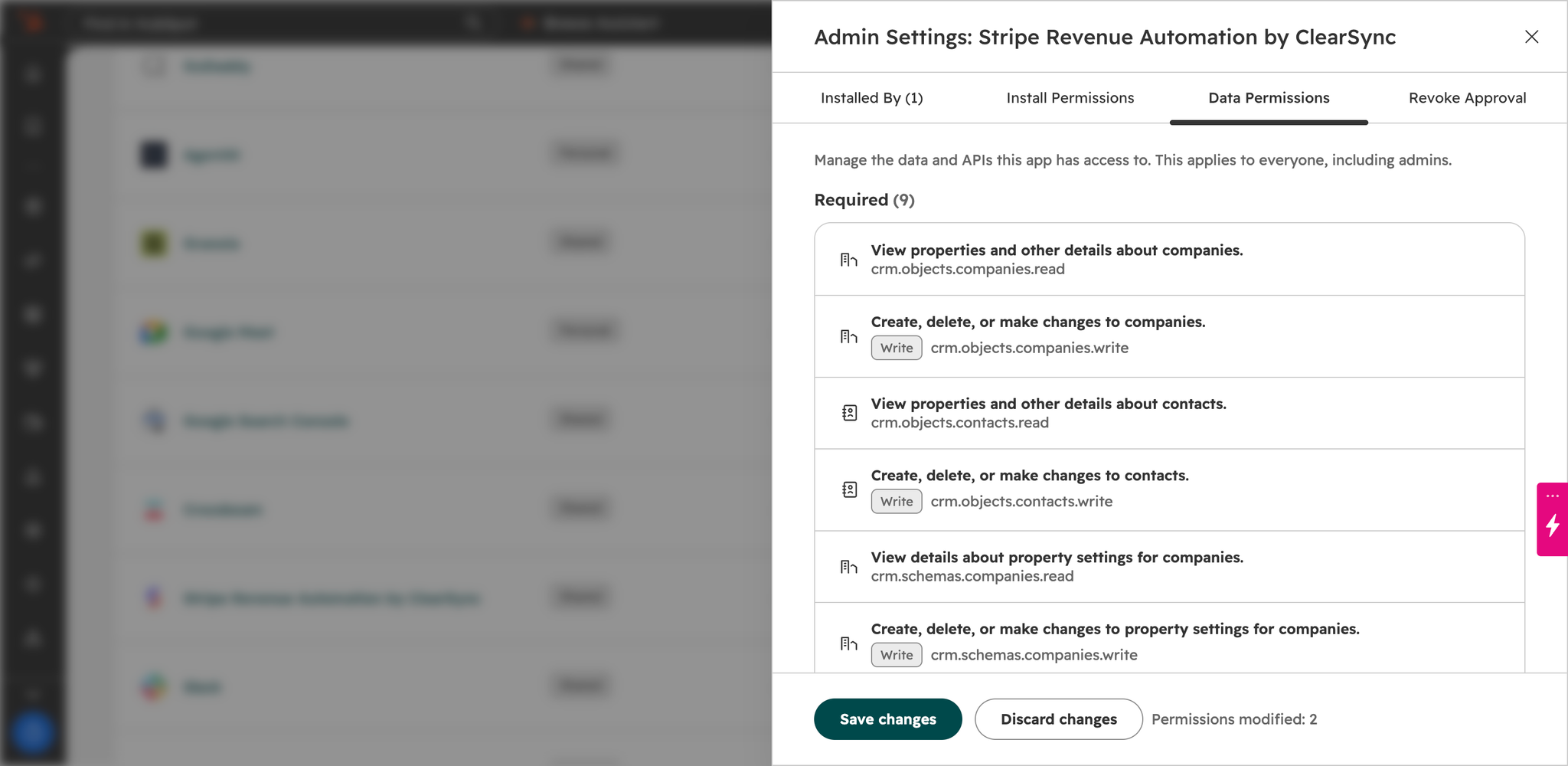
- Look for ClearSync in the list of apps. Click Manage access next to ClearSync, then open Data Permissions.
- Toggle on the permissions listed in the error and click Save changes. Usually this means simply turning on all the permissions available.
- Go back to ClearSync and click the “update HubSpot” button in the banner again.
Not a Super Admin? Send this page to your HubSpot Super Admin and ask them to do steps 1-3.
Why This Happens
When a new ClearSync feature needs more HubSpot access, HubSpot keeps some of those permissions switched off until a Super Admin turns them on. HubSpot has confirmed this is expected for now. Read more about this in HubSpot’s support docs here.
Still stuck? Reach out to us at support@clearsync.ai and we'll help you out.