
ClearSync Stripe Event app object records are created in HubSpot for every change to a Stripe Subscription’s MRR, making it easy to see cumulative MRR change over time in HubSpot:
Cumulative [New Sale & Upgrade] + [Downgrade & Churn] MRR this year:
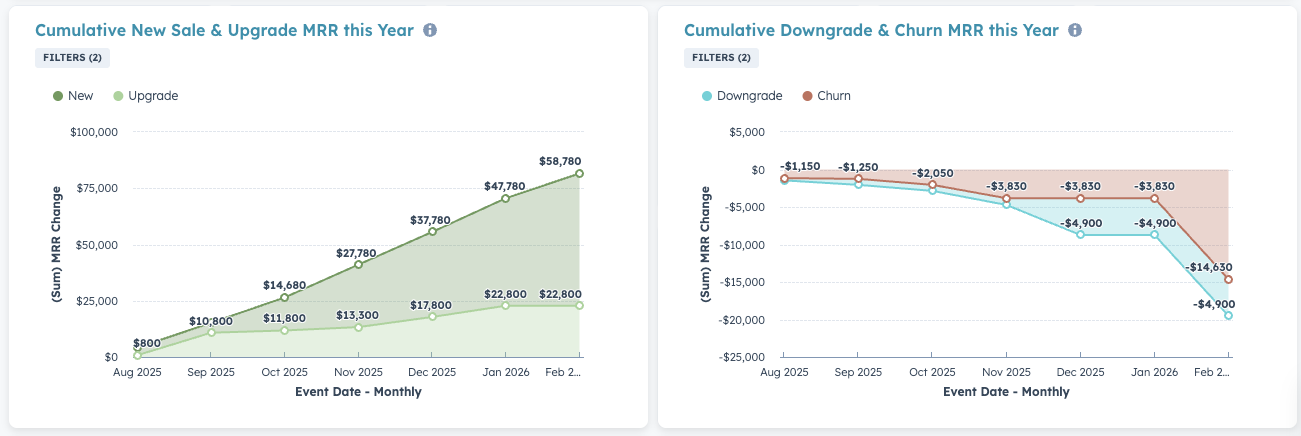
To create the Cumulative [New Sale & Upgrade] report:
- Step 1: Go to Reports > Create Reports
- Step 2: Create a Custom Report > set the Primary Data Source to ClearSync Stripe Events
- Step 3: Click Filters and add these two filters:
- Event Date is this year
- Event MRR Type is any of New or Upgrade
- Step 4: Click Configure, then configure the report:
- Select the Area icon under “Chart”
- Drag the field Event Date into the X-axis
- Drag the field MRR Change into the Y-axis
- Drag the field Event MRR Type into the “Break down by” section
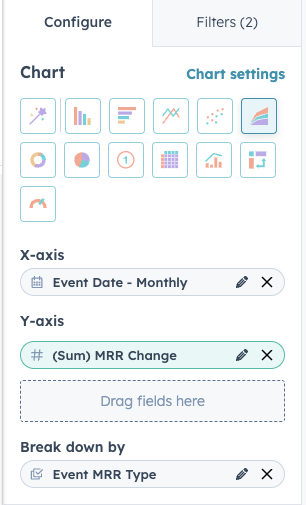
- Step 5: Click Chart Settings, and
- Check the box for Cumulative
- Make sure “Stacked” says “Standard”
- At the bottom, set more intuitive colors for the “New” and “Upgrade” buckets:
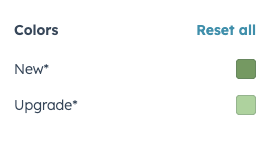
🏁 Save the report and optionally add it to a Dashboard
- Suggested Report Name: Cumulative New Sale & Upgrade MRR this Year
To create the Cumulative [Downgrade & Churn] report:
- Step 1: Clone the previous report that you just created for New Sales & Upgrades, rename it, and save it.
- Suggested Report Name: Cumulative Downgrade & Churn MRR this Year
- Step 2: Click “Filters” and change the Event MRR Type filter to be any of: Downgrade and Churn
- Step 3: Click “Configure” > Chart Settings
- At the bottom, set more intuitive colors for the “Downgrade” and “Churn” buckets:
🏁 Save the report and optionally add it to a Dashboard
- Suggested Report Name: Cumulative Downgrade & Churn MRR this Year