
Report of Currently Past Due Subscriptions:

To create a Currently Past Due Stripe Subscriptions Report:
- Step 1: Go to Reports > Create Reports
- Step 2: Create a Custom Report, and set the Primary Data Source to ClearSync Stripe Subscriptions
- Step 3: Click Filter and add a filter for Subscription Status is any of Past Due
- Step 3: Click Configure, then configure the report:
- Select the Table icon under “Chart”
- Drag the following fields into Columns:
- Current MRR (pencil icon > change Format to Currency, 0 Decimals)
- Current ARR (pencil icon > change Format to Currency, 0 Decimals)
- Stripe Customer Name
- Stripe Customer Email
- Product Name
- Current Period Start (pencil icon > change to Daily)
- Current Period End (pencil icon > change to Daily)
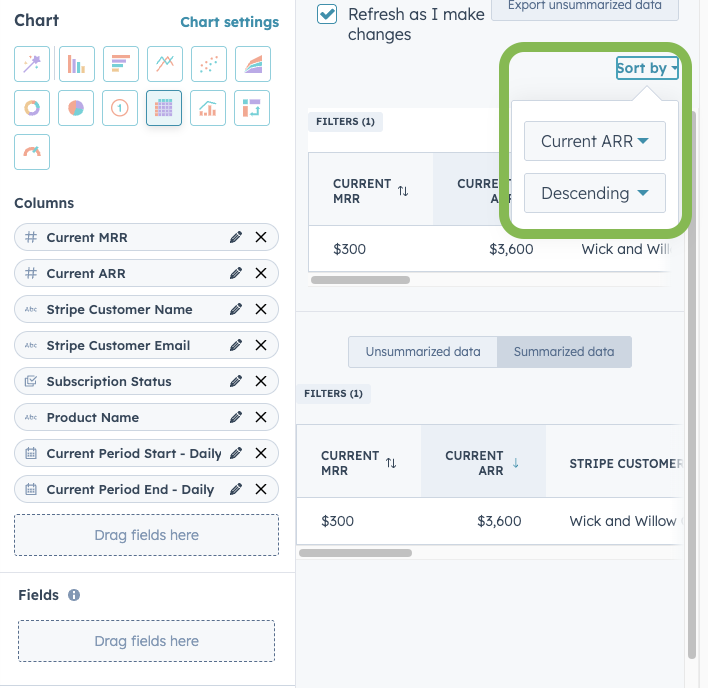
- Step 4: Click Sort by and change the sort to Current ARR, Descending
🏁 Save the report and optionally add it to a Dashboard
- Suggested Report Name: Currently Past Due Stripe Subscriptions