
Example “Current MRR by X” Segment Reports in HubSpot
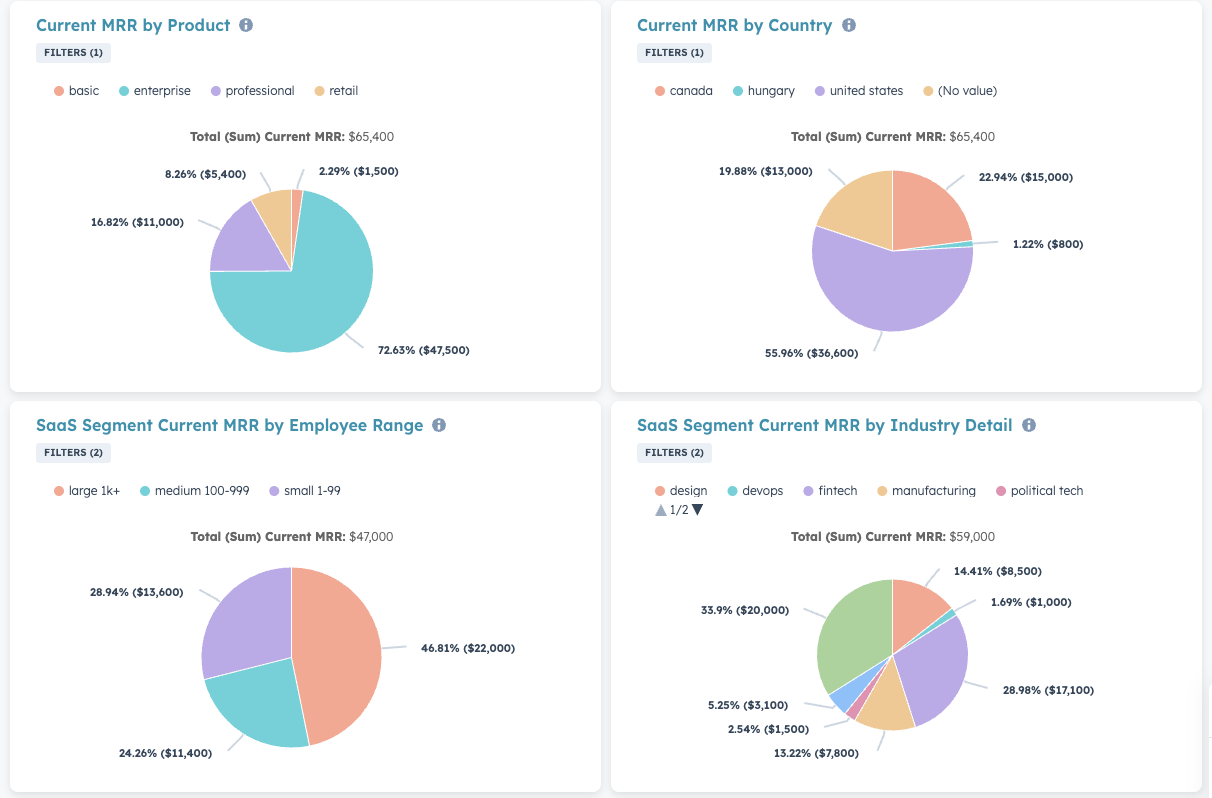
To create a Current MRR/ARR by Segment report:
- Step 1: Go to Reports > Create Reports
- Step 2: Create a Custom Report, and:
- (A) Set the Primary Data Source to ClearSync Stripe Subscriptions
- (B) Check the Add more data sources checkbox and add Companies and Contacts, which will let you create segmented reporting using data on either the Company or Contact that ClearSync has related to your Stripe data in HubSpot.
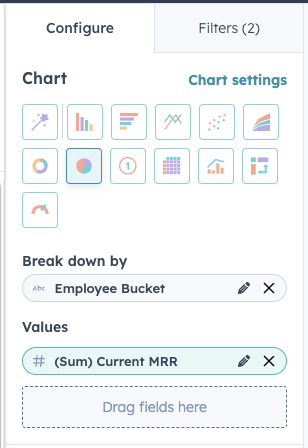
- Step 3: Click Configure, then configure the report:
- Select the Pie icon under “Chart”
- Drag the field you’d like to segment by (e.g. Employee Bucket) from either the Contact or Company into “Break down by”
- Drag the field Current MRR (or Current ARR) into “Values”
- Step 4: Optionally add any Filters to the report that you might want to help you filter down to only report on the segment(s) that you’re looking for.
🏁 Save the report and optionally add it to a Dashboard
- Suggested Report Name: Current MRR by X