
# Active Paid Subscriptions, Current & Average MRR/ARR, & ARR Goal %
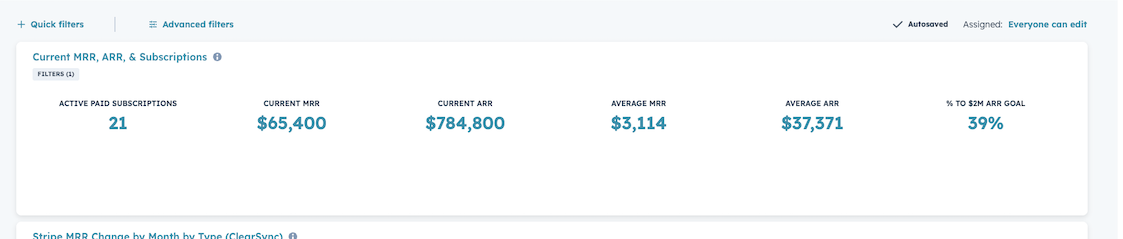
To create this report highlighting Stripe Subscription KPIs in HubSpot:
- Step 1: Go to Reports > Create Reports
- Step 2: Create a Custom Report, click next, select ClearSync Stripe Subscriptions as your Primary Data Source, and then click next again.
- Step 3: To start building your report, click “Filter”, drag in the field Current MRR, and set the filter to Current MRR is greater than 0 so that we only count paid subscriptions
- Step 4: Under “Chart” select the KPI option (a circle with the number 1)
- Step 5: Drag the following fields into the Values section:
- (Count) clearsync stripe subscriptions
- Click the pencil icon > change the Name to “Active Paid Subscriptions”
- Current MRR
- Click the pencil icon > remove (sum) from the Name
- Set Format = Currency with 0 decimals
- Current ARR
- Click the pencil icon > remove (sum) from the name
- Set Format = Currency with 0 decimals
- Current MRR (again)
- Click the pencil icon > change the name to Average MRR
- Set Aggregation > Average
- Set Format = Currency with 0 decimals
- Current ARR (again)
- Click the pencil icon > change the name to Average ARR
- Set Aggregation > Average
- Set Format = Currency with 0 decimals
- Step 6: Create a % to $XM ARR Goal field [requires HubSpot Professional or Enterprise]
- In the Report builder, go to Formula fields at the bottom, and click Add +
- Name your field something like % to $XM ARR Goal at the top
- Paste in this example formula, modifying the number at the very end to reflect your ARR goal (the example reflects a goal of $2,000,000)
javascriptSUM([a10608503_CLS_STRIPE_SUBSCRIPTION.a10608503_current_mrr]*12)/2000000
🏁 Save the report and optionally add it to a Dashboard
- Suggested Report Name: ClearSync Stripe Paid Subscription KPIs